
Workspaces
Workspaces are CORAS's canvas-based collaboration spaces — scoped environments where teams interact with their data, run analysis, and drive mission workflows. Each workspace brings together SmartLists, SmartBoards, SmartLanes, SmartGantt, Libraries, and Gary in one integrated view, tailored to a specific node or collection. Workspaces are where the day-to-day work happens: entering data, tracking progress, generating reports, and making decisions.
When to Use This
Setting up a new program area — Create a workspace for your team's node so they have a single entry point for all their tools and data.
Collaborating across teams — Workspaces can be shared with user groups, giving multiple teams a common operating picture.
Running Gary within context — Gary operates within the scope of a workspace, so its analysis and recommendations are grounded in the data visible in that workspace.
Creating a Canvas
Workspaces in CORAS live inside a canvas. Before creating a workspace, you need to set up a canvas first.
In the left side panel, expand the menu and scroll down to Add Canvas.
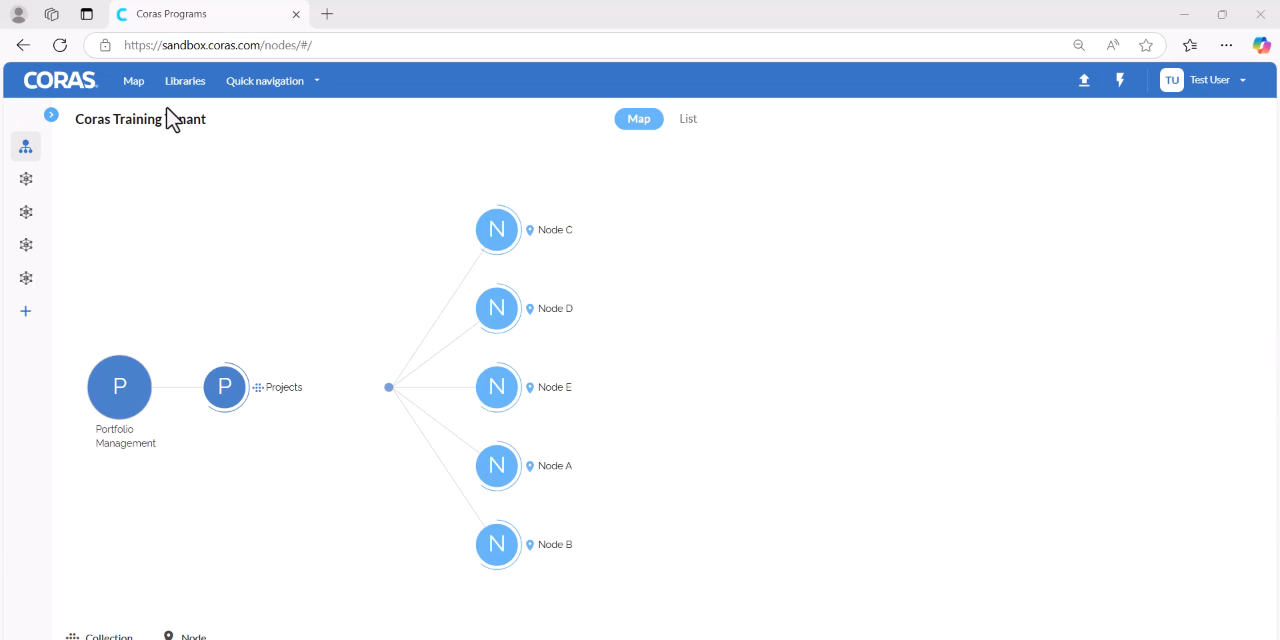
Enter a title for your canvas. Optionally, add a description.
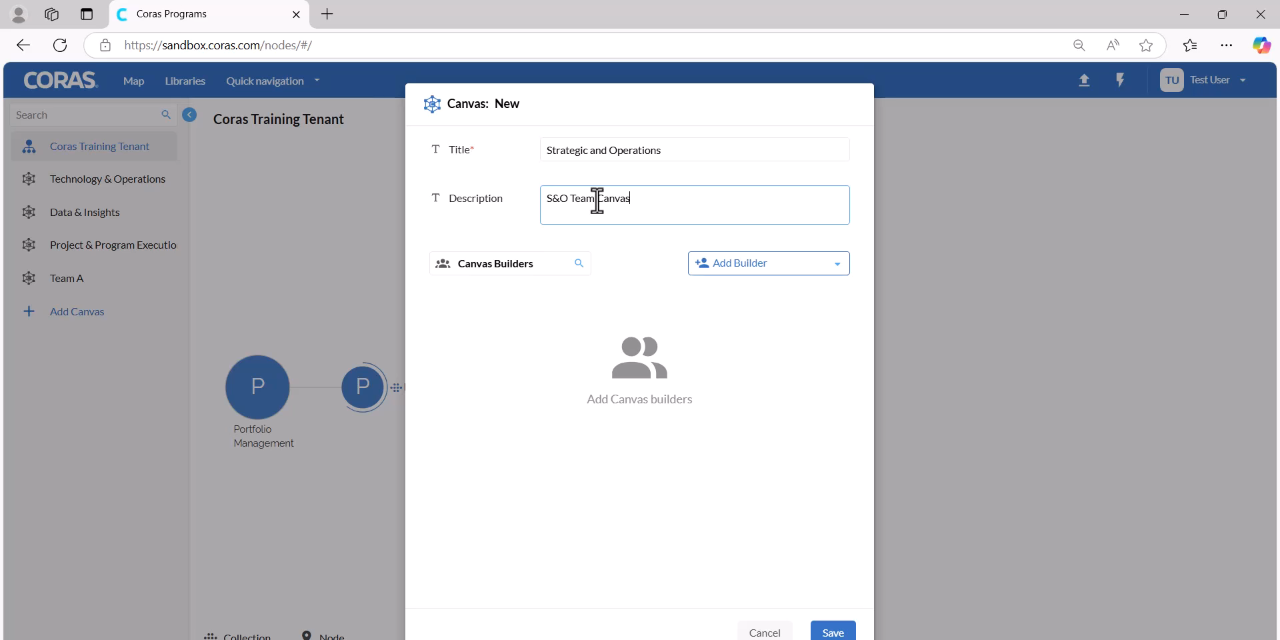
Under Add a Builder, select the individuals you want to assign as builders for this canvas.
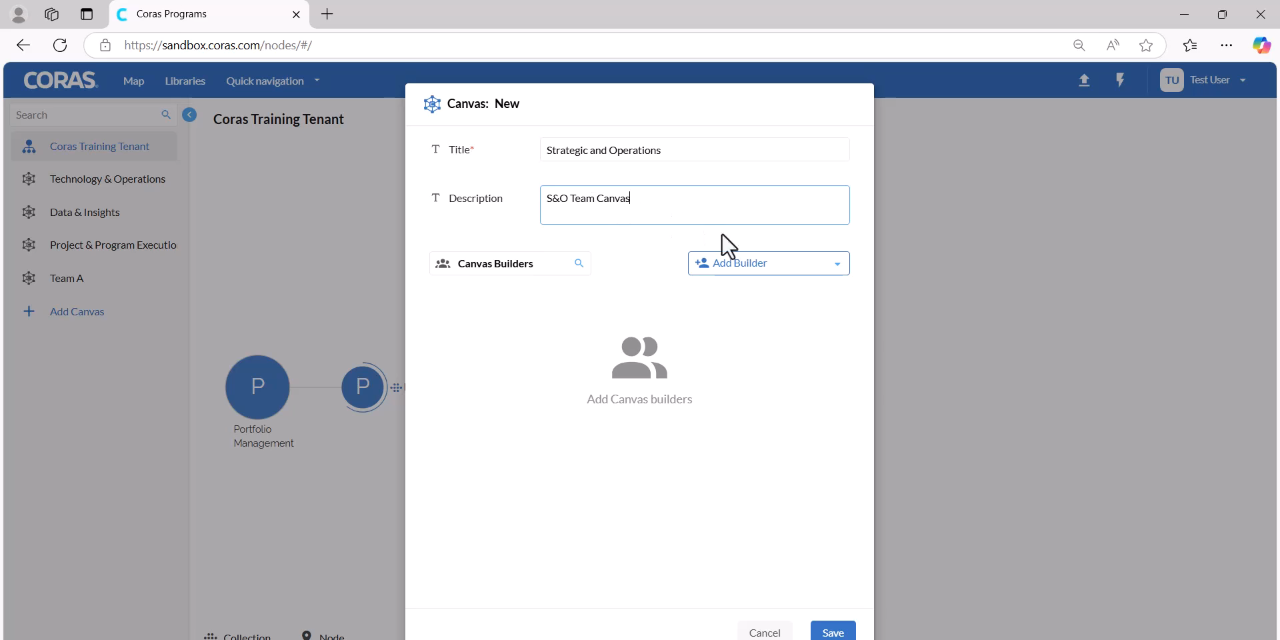
Click Save.
Creating a Workspace
With the canvas open, select Add Workspace at the top right.
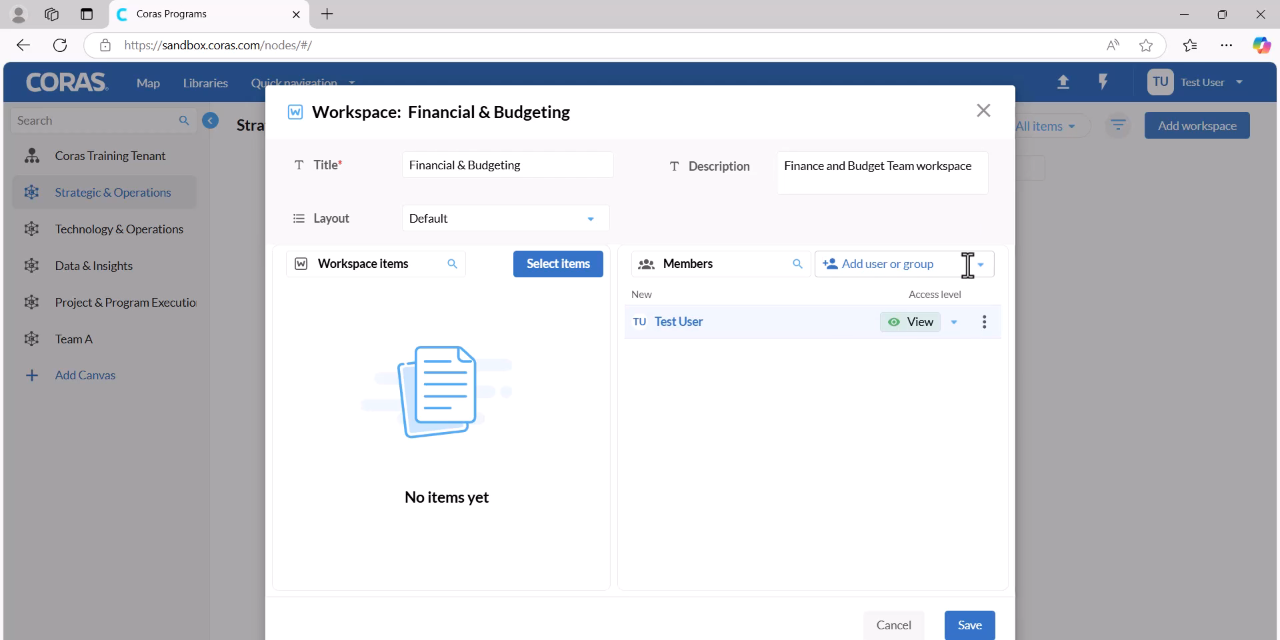
Enter a title for the workspace. Optionally, add a description.
Select the individuals you want to have access to this workspace.
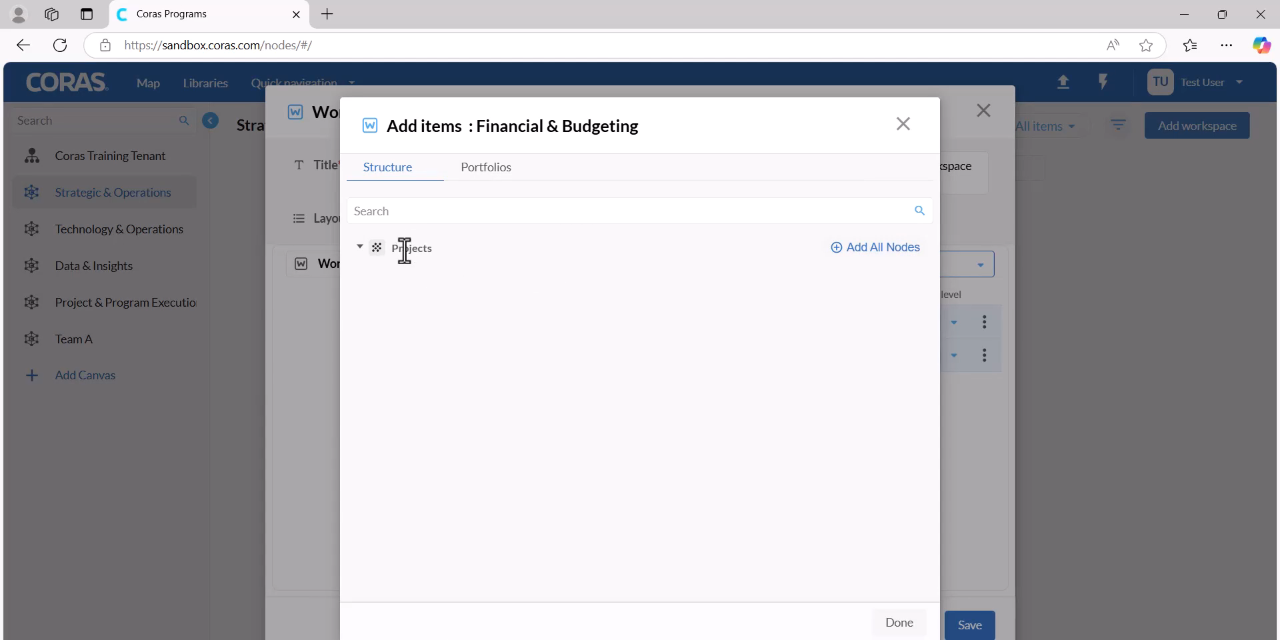
Set each individual's permission level to either Manage or View.
To remove a user, click the three dots next to their name and select Remove User.
On the left-hand side, click Select Items to choose which nodes the workspace members can access. Select one or more nodes, then click Close.
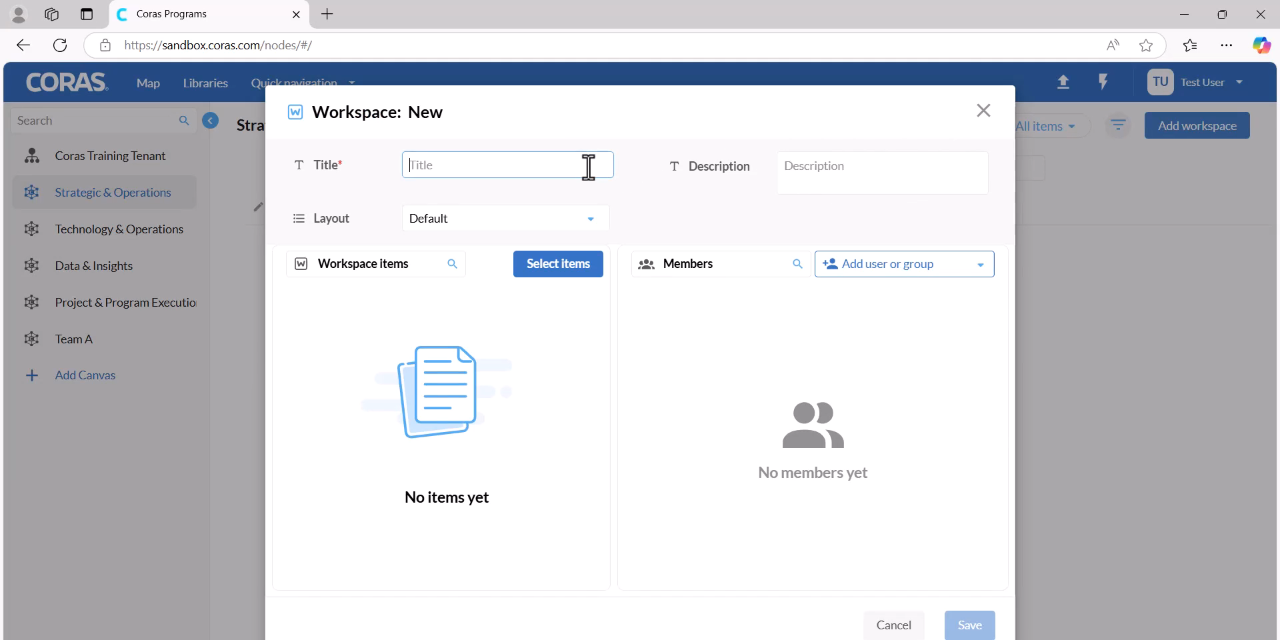
Click Save.
Adding Another Workspace
Select Add Workspace.
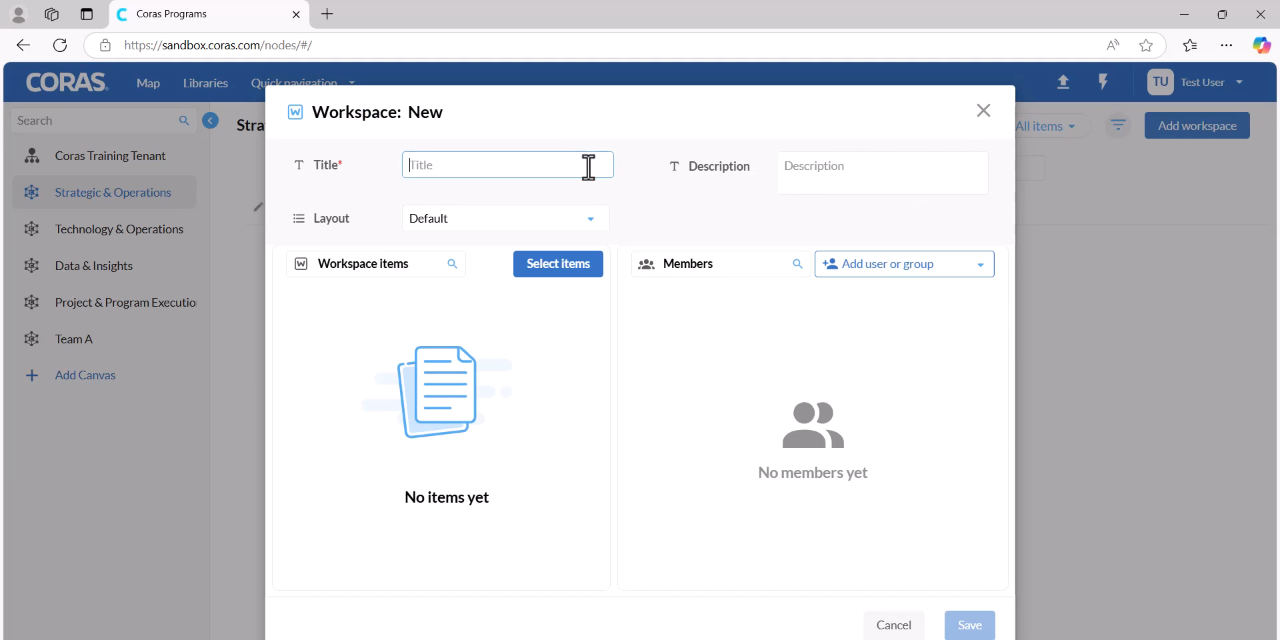
Enter a title and optionally a description.
Click Select Items and choose the nodes for this workspace.
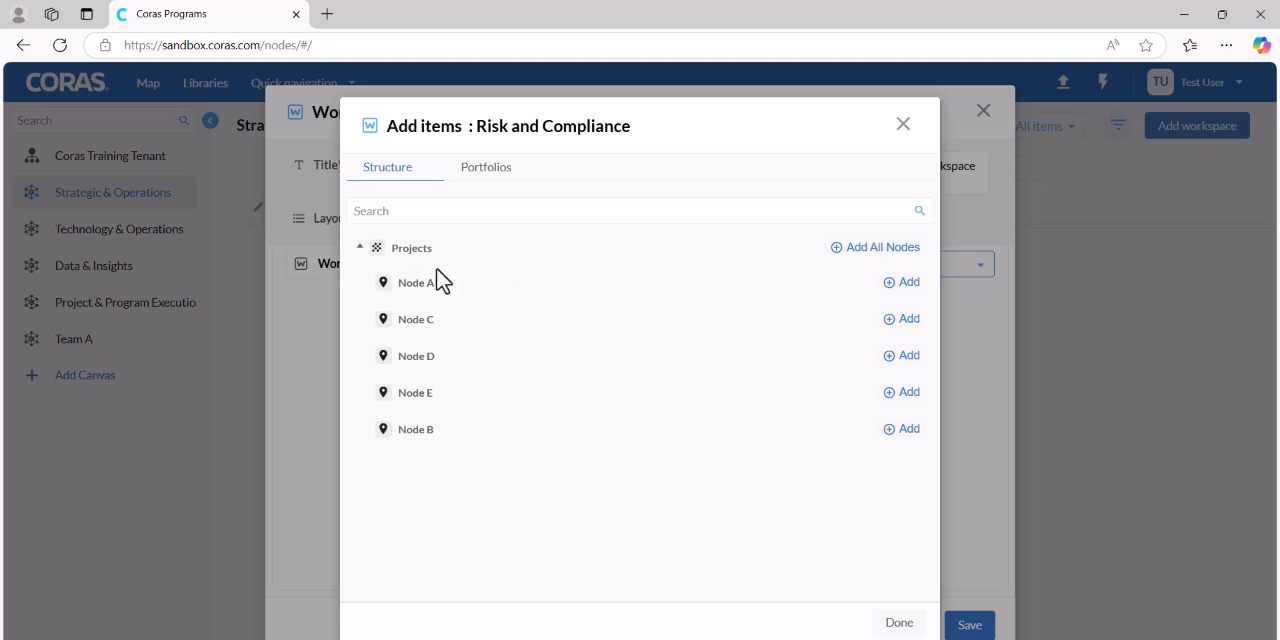
Add individuals and click Save.
Viewing Workspaces in Map Form
Select Map at the top to switch to the map view. The workspaces appear as nodes with the canvas as the root.
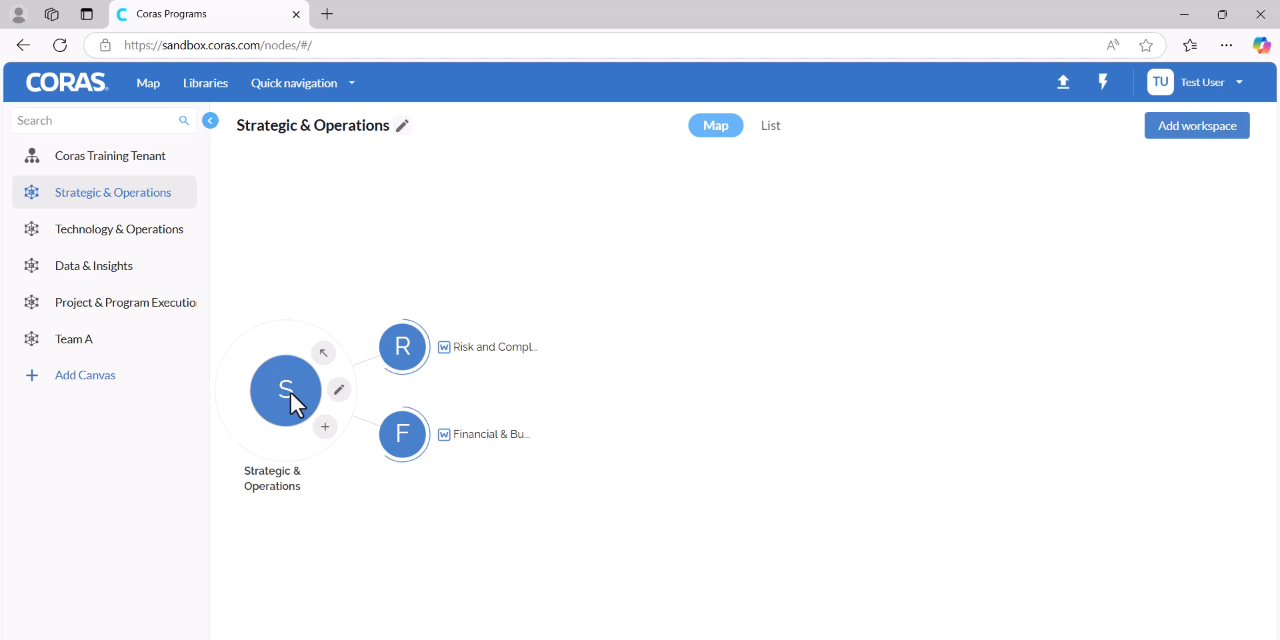
Click Navigate To to move into a specific workspace.
Removing a Canvas
Select the canvas title at the top and click the Edit pencil icon.
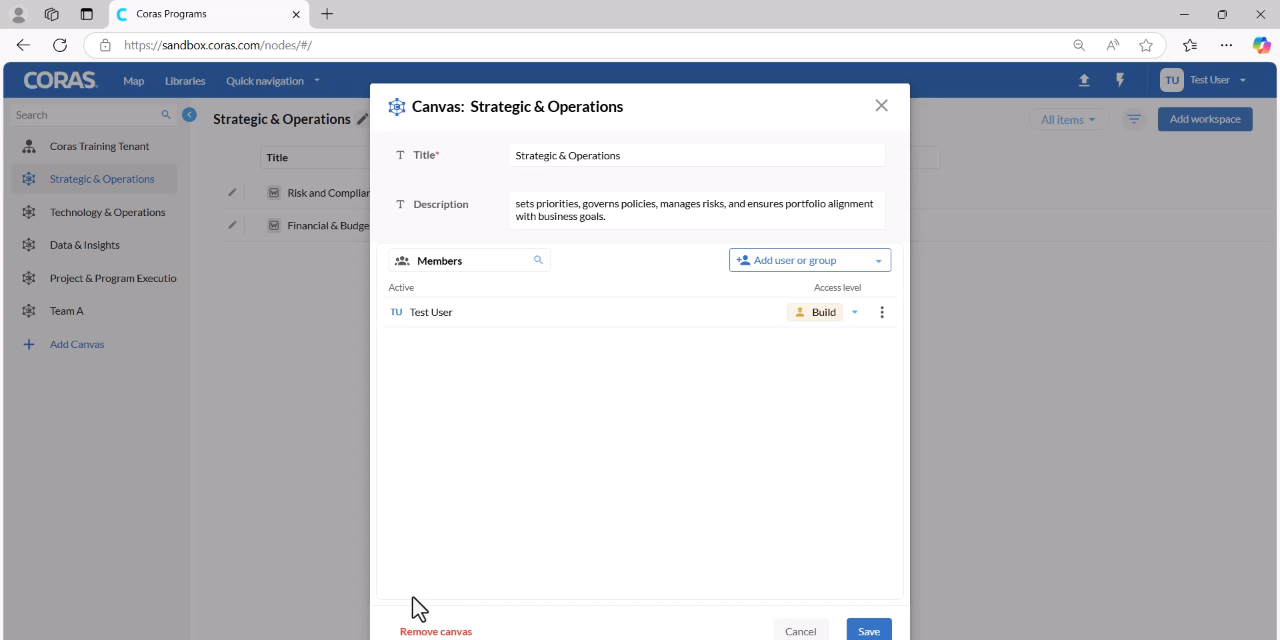
Click Remove Canvas.
Confirm your decision by clicking Delete.