
Default Fields
Default fields define the baseline data structure that every new item in a node inherits. By configuring default fields, you ensure consistency across your data — every record captures the same core attributes, making it possible for Gary and SmartBoards to analyze, compare, and report across items reliably. Well-defined fields are the foundation of everything from conditional formatting in SmartLists to AI-powered analysis in SmartLanes.
When to Use This
Setting up a new node or collection — Define the fields that all items should have before data entry begins.
Standardizing data across teams — Ensure different groups capture the same attributes so cross-portfolio analysis is meaningful.
Enabling AI features — Gary and SmartLanes work best when data fields are consistent and well-populated across items.
Viewing Default Fields
After completing a multi-node ingest, you can review your ingested data using list view. CORAS provides several default fields for organizing and tracking items.
Navigate to the collection that holds the nodes where the data was dispersed.
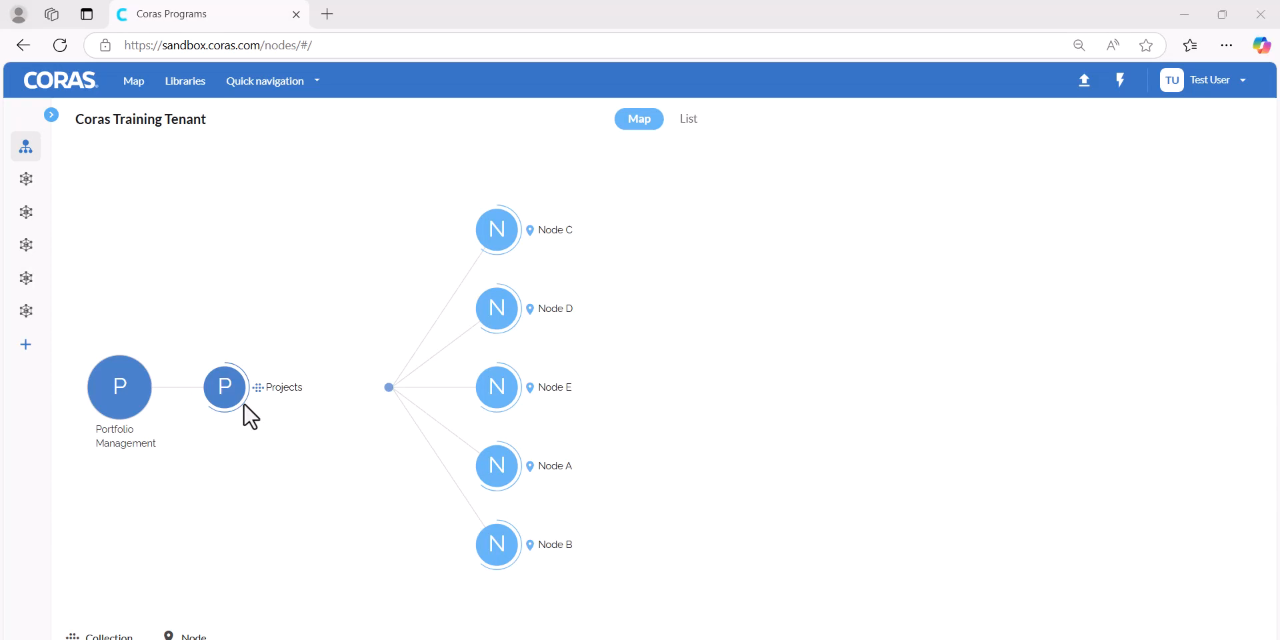
At the top, select List View.
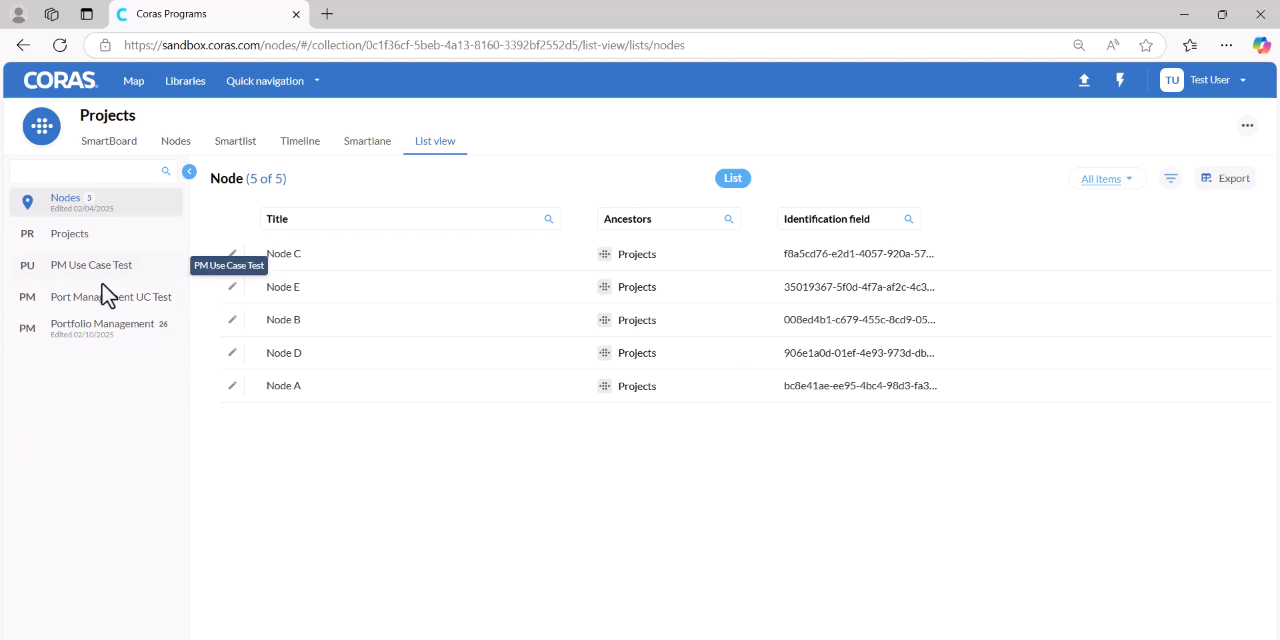
On the left-hand side, select the name of the list that was ingested.
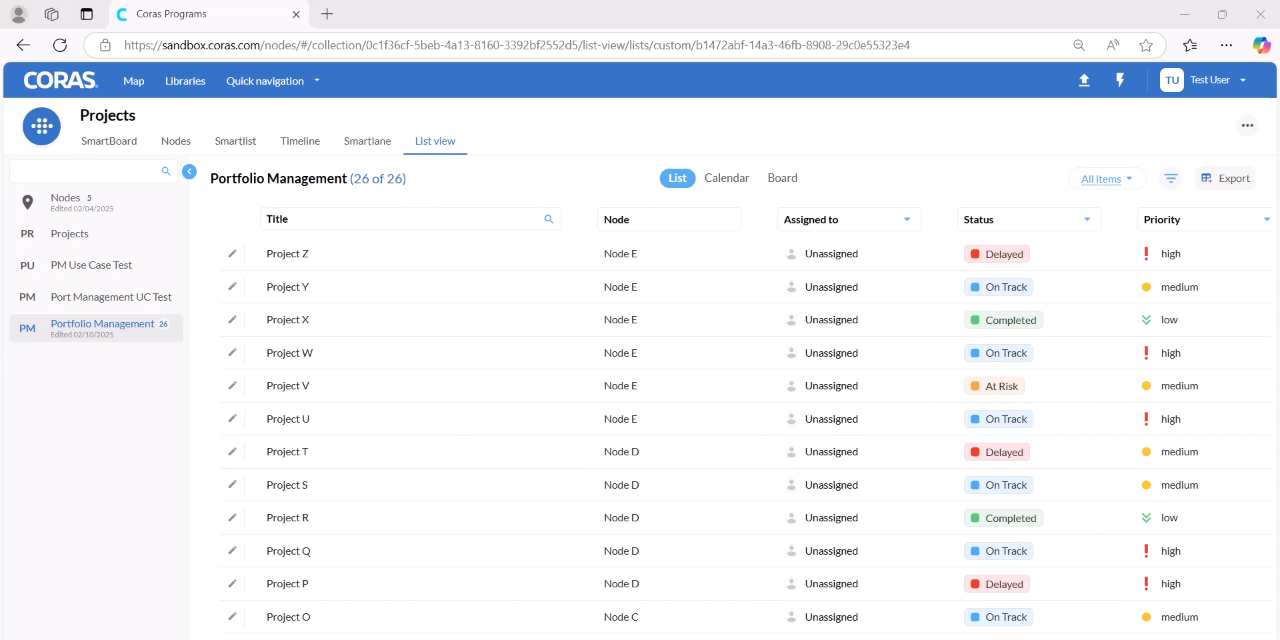
Review the ingested items displayed in the list.
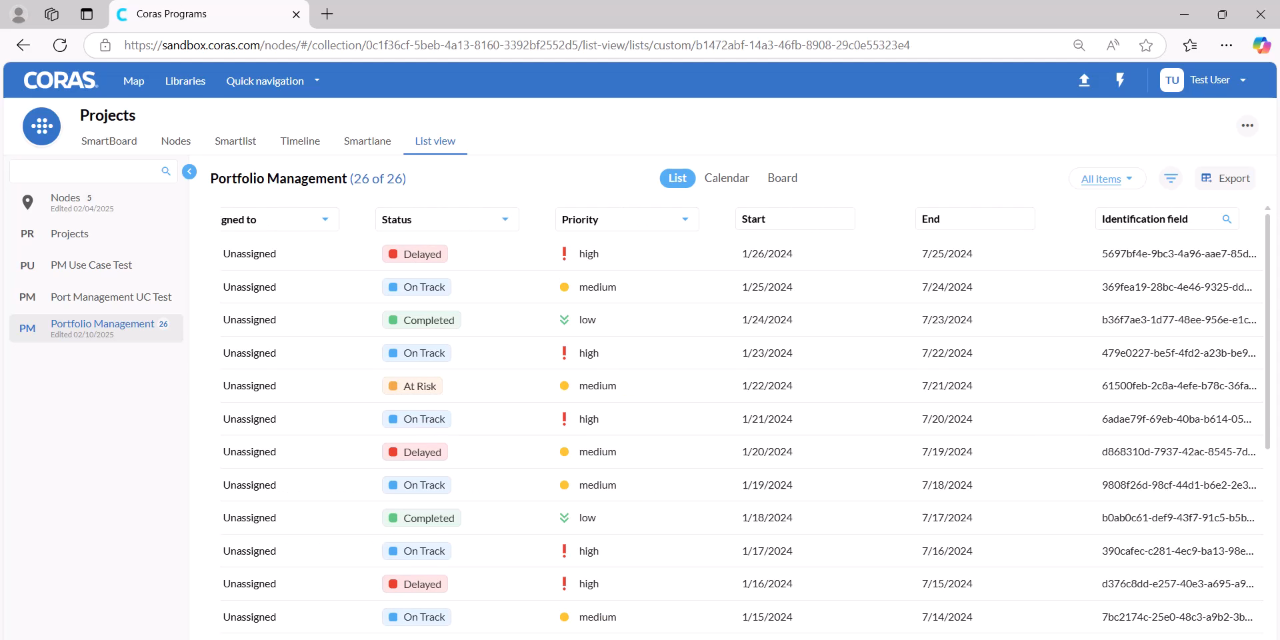
Default Fields
The following default fields are available in CORAS list view:
Title
Node Assigned To
Status
Priority
Start and End dates
Identification Field