
GARY AI - Getting Started
GARY is your embedded AI orchestrator inside CORAS — engineered for the stakes and speed of federal decision-making. He orchestrates a digital workforce of specialized agents that execute real work: analyzing data, generating acquisition documents, creating visualizations, running what-if scenarios on live data, and driving workflows within IL-5 enclaves.
If you haven't had your first GARY conversation yet, start with Your First Day in CORAS. This article covers everything GARY can do once you're up and running.
Why This Matters
GARY doesn't replace your analysts. He removes the hours of data-pulling, formatting, and aggregating that keep them from doing the work that actually requires judgment.
Every GARY conversation happens inside your IL-5 enclave, against your authorized data. There is no security exposure from using GARY that doesn't already exist when your team opens a spreadsheet.
How GARY Works With Your Data
GARY only works from your authorized data inside CORAS. He does not pull from the open internet, generate information that isn't in your records, or invent answers when data is missing. If it isn't in your system, GARY will tell you — not guess. Every answer is traceable to a real record.
GARY's ability to answer your questions depends on the data context — what information he's allowed to work from. The context is automatically applied in some areas and requires setup in others. Understanding how context works is the key to getting the most out of Gary.
Response delivery may vary depending on your tenant configuration. If GARY's responses appear all at once rather than streaming in, your administrator has disabled streaming. This does not affect response quality.
What GARY Can Do — By Scope
Single Item: Focused, precise answers about that record: risk checks, field summaries, attachment analysis. No charts or trend analysis.
SmartList: Pattern recognition across all records: charts, risk flags, comparisons, trend lines, funding analysis.
Multi-List: Cross-cutting strategic analysis. GARY connects data across lists to evaluate cost, risk, and capability together.
Four Ways to Access GARY
Click the GARY button at the top of the CORAS screen to open GARY from anywhere in the platform.
Full-Tenant GARY
Access the Full-Tenant GARY by clicking the GARY button that's always visible at the top of the CORAS screen.

1. Click GARY at the top of the CORAS screen.
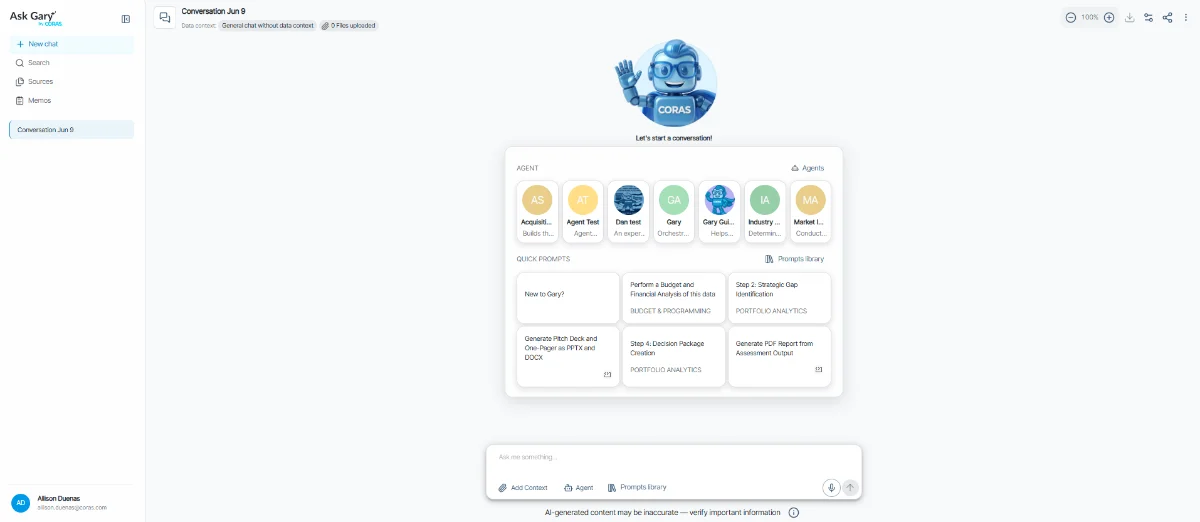
2. Select a Smart Agent from the list. The agent's data scope is applied automatically — you do not pick a Node or List yourself.
3. If the agent is linked to a data scope that covers multiple nodes, select the node you want GARY to work from. Otherwise GARY is ready immediately.
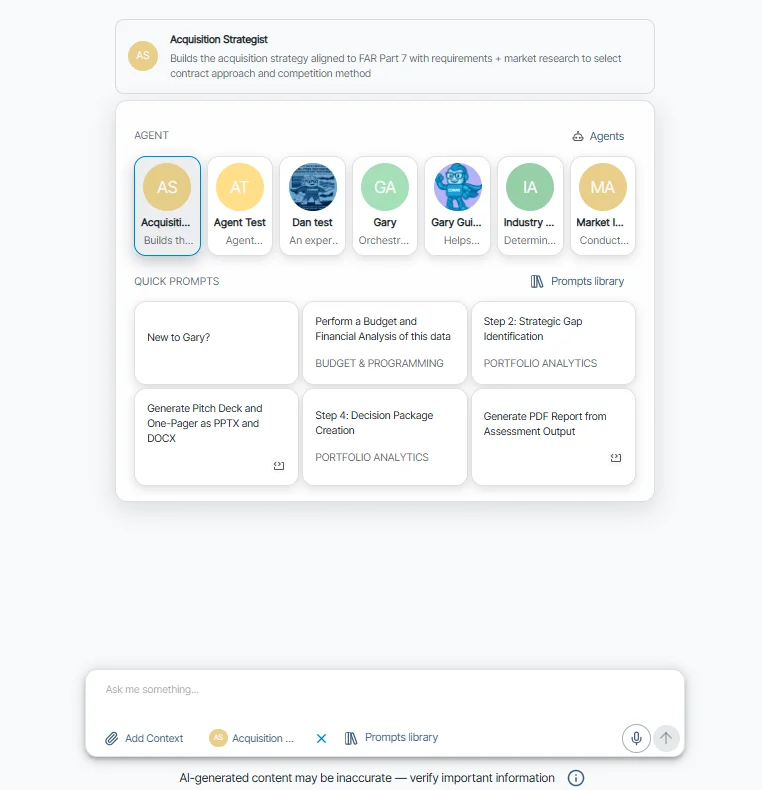
4. If you do not select an agent, GARY opens in Generic Chat mode — no data scope, no list access, general-purpose conversation only.
5. Click Start to begin your conversation.
After selecting an agent, a node dropdown appears at the top of the conversation. Select the node (project) whose data you want Gary to work from. The conversation is scoped to that node's data from the first message.
Note: Previously, starting a Full-Tenant Gary conversation required manually selecting a Node and List. Now the agent carries that configuration — selecting the right agent is how you set context.
From a "SmartList"
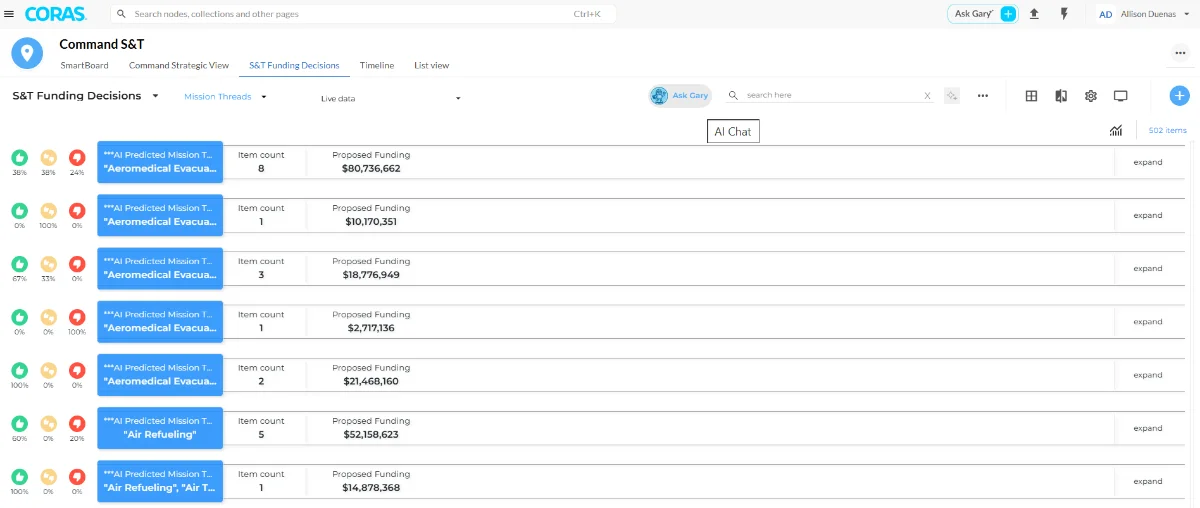
When accessing GARY from a SmartList, the data context is automatically set to that List.
Navigate to the SmartList, then select Ask GARY next to the search bar.

The data context is automatically set to that list — you don't need to configure anything.
GARY has access to all records in the list when formulating answers. Multi-list functionality is not available from this view.
Note: selecting Ask GARY at the top of the CORAS screen from within a SmartList will open full-tenant GARY , not the SmartList-scoped version.
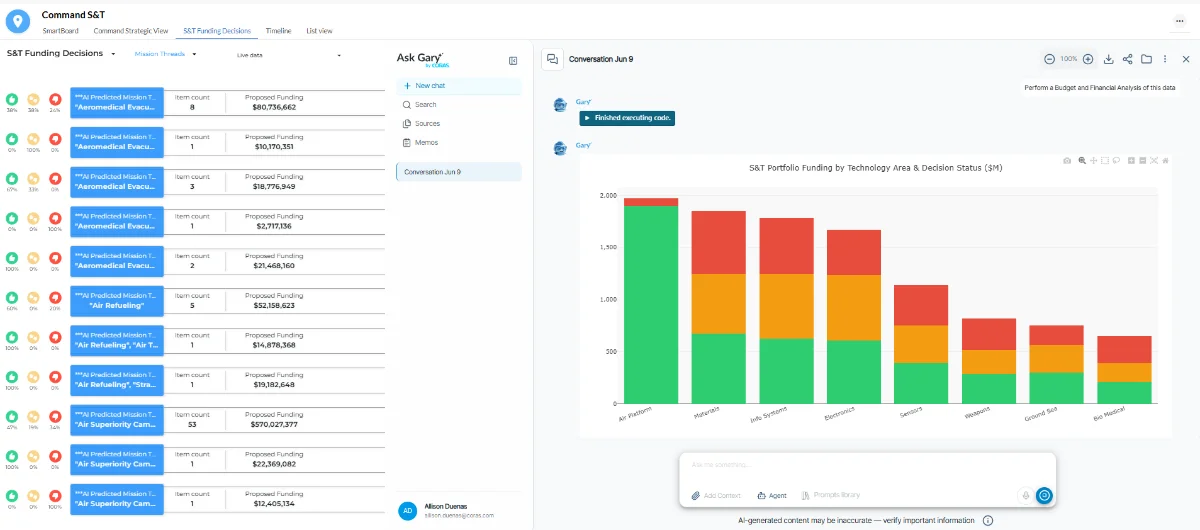
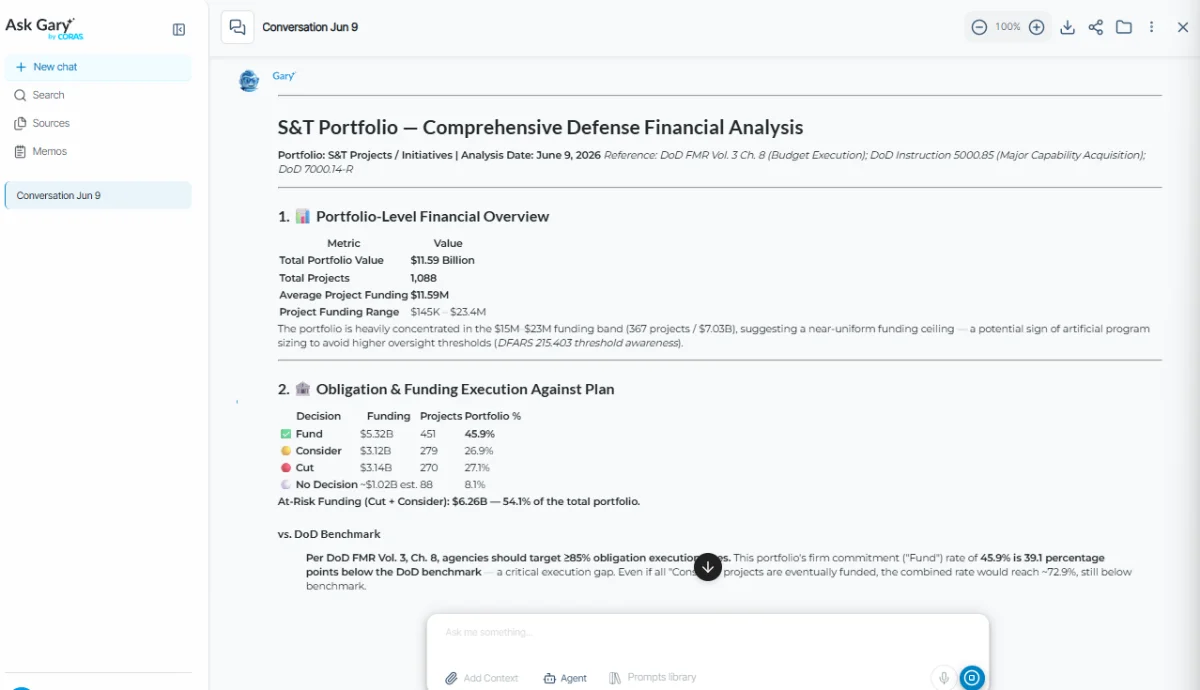
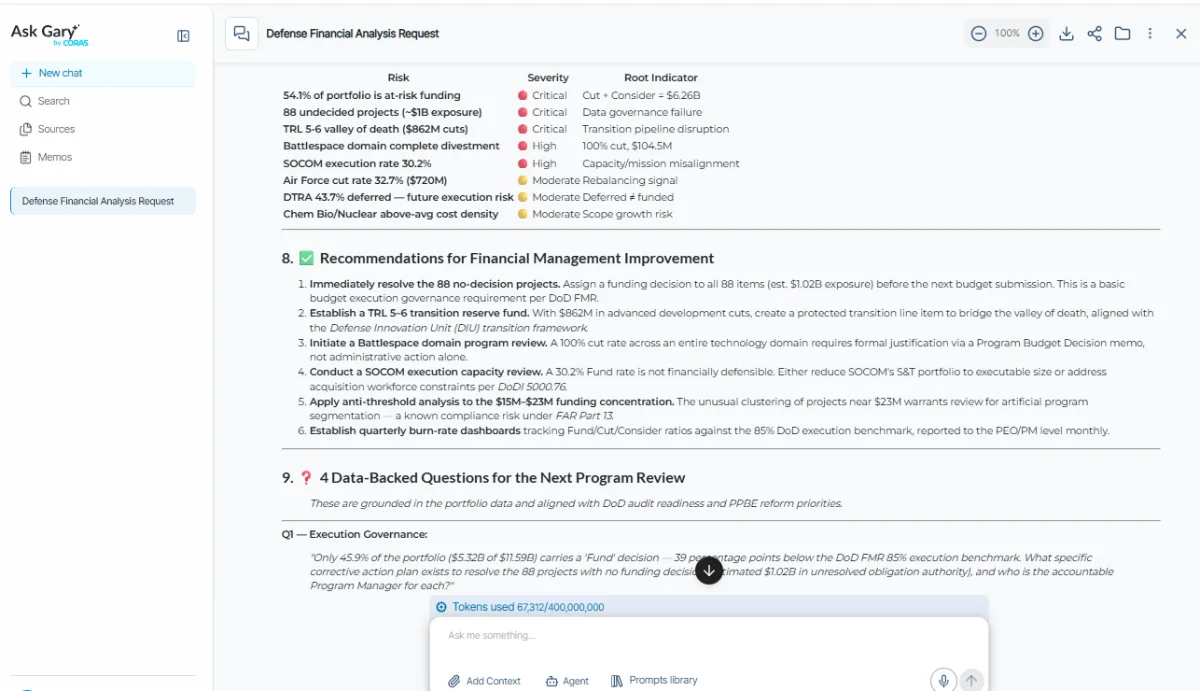
GARY cannot access other lists from this view — multi-list functionality is not available here.
From a Single Item
When you're in a single item, GARY is scoped to that record only.
Click on any record to open that list item, then click on the Ask GARY in the list modal.
GARY can answer questions about the specific item, including attachments and fields.
This view is best for quick summaries, risk checks, or record-level insights. GARY cannot see or compare other items from this view.
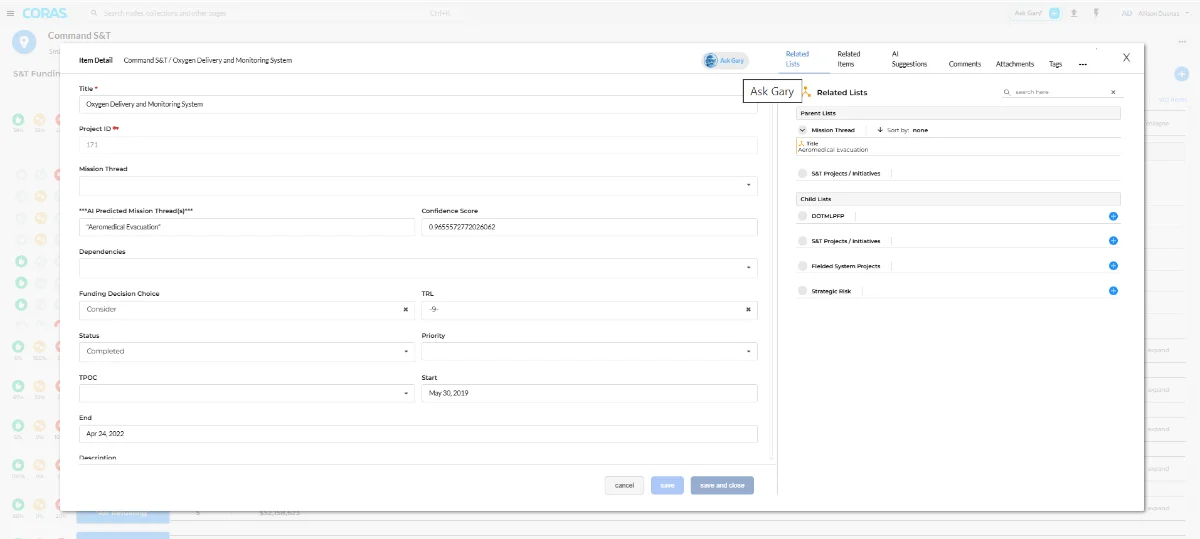
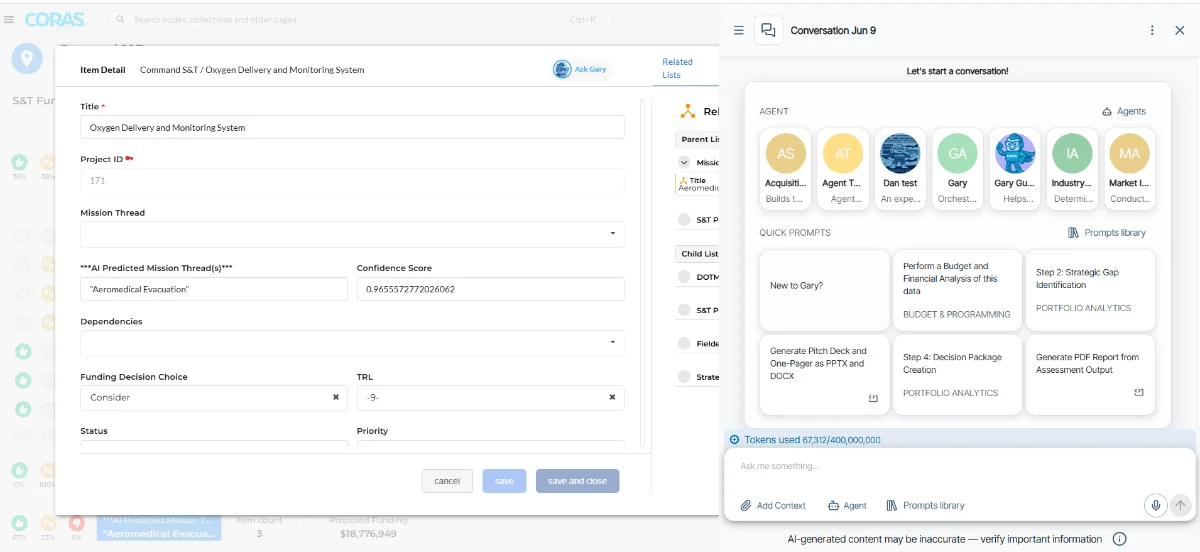
General Chat GARY
GARY offers a General Chat mode for conversations that don't require a specific data context. Useful for general questions, drafting content, or exploring concepts. GARY will not have access to your CORAS data in this mode. Only what you upload directly into your conversation.
To access, open GARY from the top of the CORAS screen and select General Chat instead of selecting an Agent or Quick Prompt before starting your conversation.
From the new chat screen, Favorites and Search are available directly — you don't need to open the full agent library first. Click Favorites to filter to your liked agents, or click Search to open the library with the search bar active.
Agent Links
Your admin can also share an Agent Link that opens GARY with context, agent, and prompt already configured — no setup required on your end. See Agent Links.
Understanding Data Context
GARY uses context — Nodes and Lists — to control what data he works from when answering your questions. Setting the right context keeps GARY's responses relevant to your task, aligned to your mission area, and scoped away from unrelated or sensitive information.
You can change the active context at any time using the Context Selector icon in the top right of the GARY window. Select a new Node or List and GARY will apply that scope to all subsequent responses in the conversation.
What GARY Can Analyze
GARY's data analysis capabilities go beyond simple Q&A. Across any list or dataset you point him to, GARY can do:
Data Calls: Surface matching records by keyword, field value, or specific criteria across your lists.
Quantitative Analysis: Calculate funding totals, averages, distributions, and obligation rates.
Trend Analysis: Identify patterns in time-series data or track changes across structured datasets.
Visualizations: Create meaningful charts and graphs with detailed write-ups that can be exported.
What-If Scenarios: Model potential changes to data parameters (funding, duration, risk) against live data.
Write to Records: Save GARY's output directly to list fields without copy-paste. See Write GARY's Output to Your Records.
Example Prompts & Questions to Ask GARY:
Not sure what to ask GARY first? Try one of these:
"Summarize this SmartList."
"Which records are missing TRL scores?"
"What are the major risks in this program?"
"Compare funding across all readiness initiatives."
"Is anything overdue?"
"Run a what-if scenario on a 10% budget reduction."
"Which programs are under-executing this quarter?"
FAQ
If a Chat Won't Load
Occasionally a GARY conversation may fail to load — for example, if a record behind the conversation's title or fields was changed or removed. Instead of a full-page error, GARY shows a recovery screen with two options:
Delete this chat — permanently removes the broken conversation. Use this when the session is no longer needed. You do not need an administrator to clear it.
Select another chat — returns you to your conversation list so you can open a different session.
Pick the option that fits and continue working. You do not need to refresh the page or contact support.
Get Help
Contact your Customer Success Manager or visit the Customer Resource Center for additional support with GARY and data context configuration.