
Save Responses with Memos
Gary gives great answers. Memos lets you keep them.
When a Gary response is exactly what you need — the right analysis, the right format, the right level of detail — Memos saves that prompt and response pair to your personal collection. No re-running the same question. No scrolling back through old conversations. The answer is there when you need it again.
Why This Matters
The best Gary outputs are worth keeping. Memos turns a one-time answer into a reusable asset.
Institutional knowledge lives in Gary conversations. Memos is how you stop it from disappearing when the chat window closes.
Your team runs the same analysis repeatedly. Save the response once. Pull it back up every time instead of starting from scratch.
Save a Memo
In a Gary conversation, hover over any AI response
Click the save icon that appears on the message

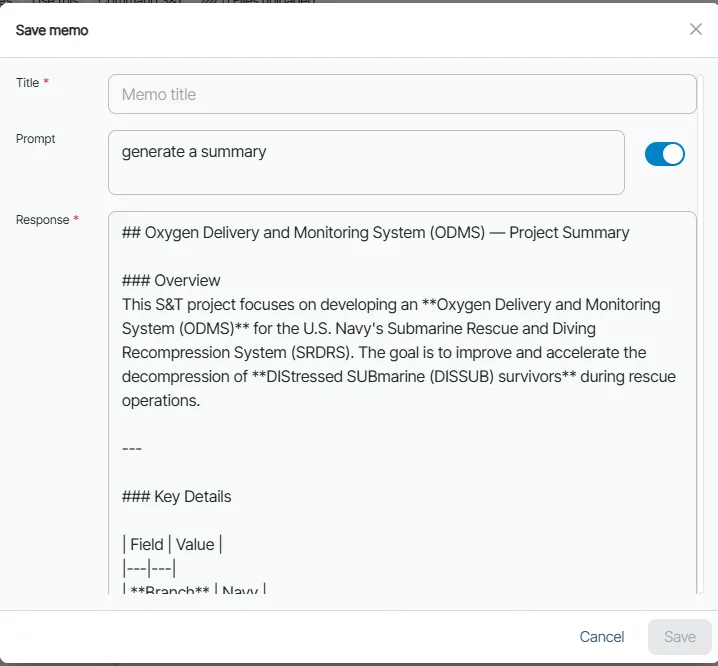
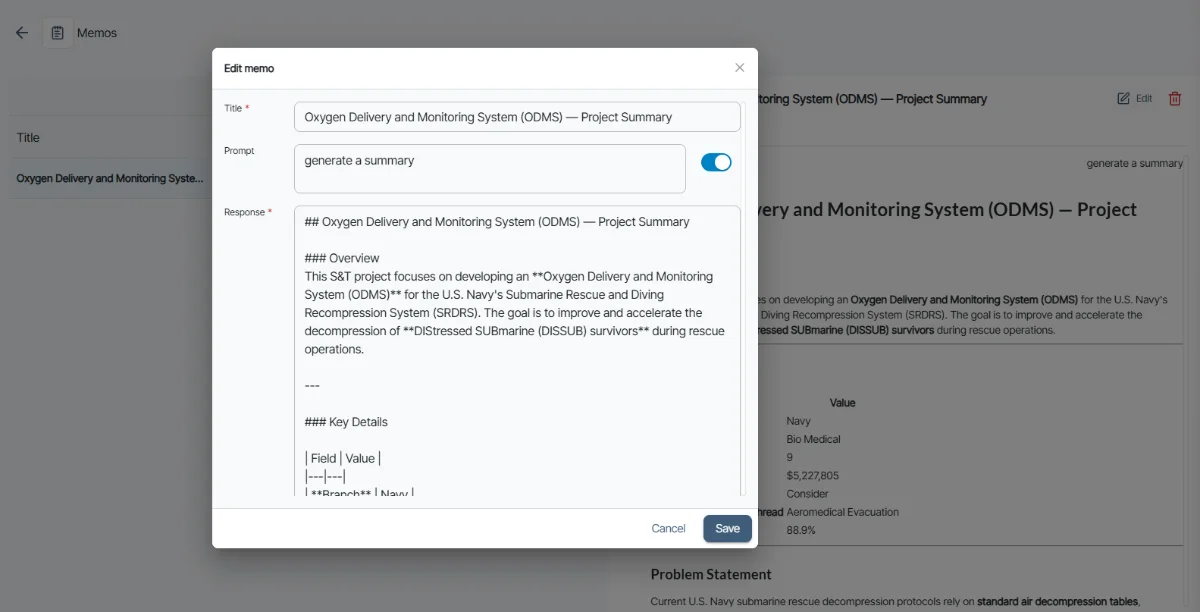
A save panel opens — add a title, toggle whether to include the prompt, review the response body, and add any tags for sorting
Click Save
The memo saves to your personal Memos collection immediately.
Download a Memo as PDF
You can export any memo as a standalone PDF. The download button sits next to the Shared toggle on the memo.
Open the memo you want to download.
Click the Download icon next to the Shared toggle.
The memo downloads as a PDF to your device.
Note: This downloads a single memo, not a full conversation. To export a full conversation, see Exporting a Conversation.
Save AI-Generated Images to a Memo
If GARY's response includes images, those images are preserved in the saved memo — the memo reflects the full response, including all images.
Hover over the GARY response that contains the image.
Click the save icon that appears on the message.
The save panel opens. The image is included automatically alongside the response body.
Add a title and any tags, then click Save.
The memo saves the image as part of the response. When you reopen the memo, the image is there alongside the text.
Attach a Memo to a Conversation
You can attach any memo you own — or any memo shared with you — directly to a GARY conversation, so GARY can reference it without you retyping the content.
In the chat composer, click the "+" menu.
Select Memos from the attachment options.
Choose the memo to attach. Owned and shared memos both appear. Shared memos are marked with a shared indicator.
Send your message. GARY has access to the full prompt and response stored in the memo.
The original memo is unchanged by attaching it — you're passing GARY a copy of the content, not modifying the saved memo.
Access Your Memos
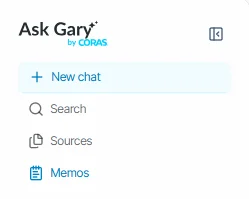
In the GARY sidebar on the left, click Memos
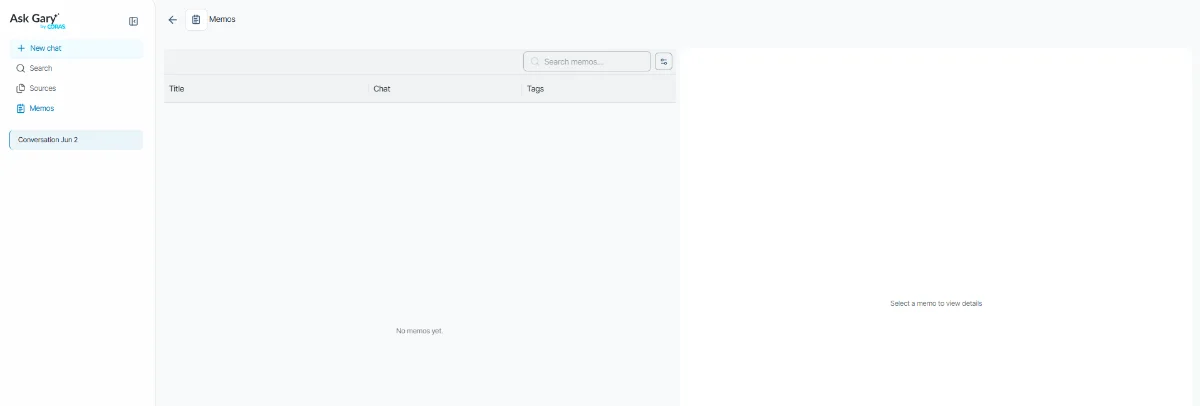
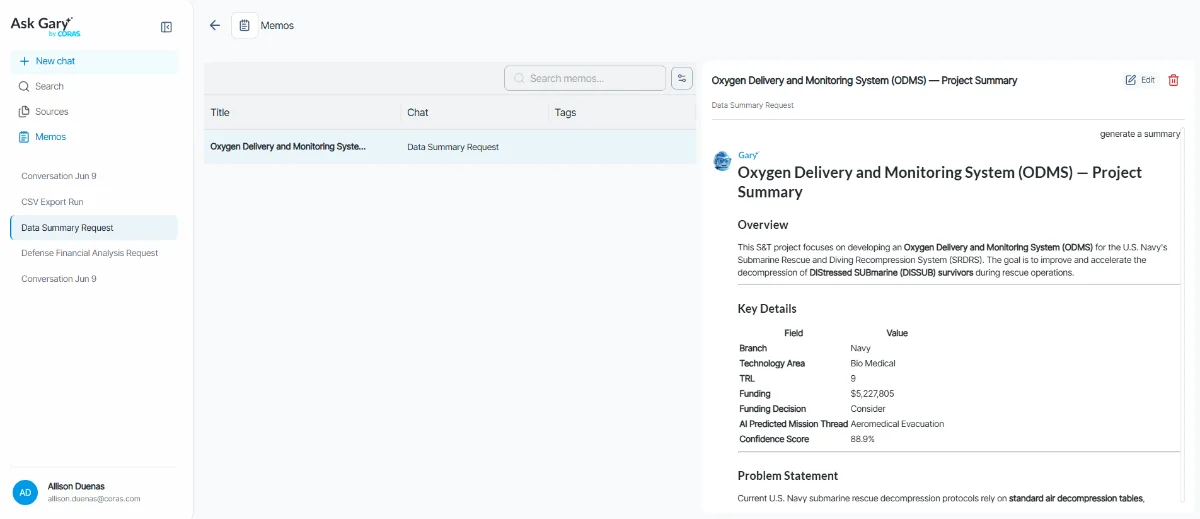
Browse your saved collection — each memo shows its title, the conversation it came from, and any tags you added
Use the search bar to filter by keyword or tag
Click any memo to view the full saved response
Add or Edit Tags
Tags let you organize and filter your memos. To add or edit tags on a saved memo:
Locate the memo in your collection
Click Edit
Add or update tags
Save
Share a Memo With Your Team
You can share any memo you own with all users in your tenant. Recipients see it as a read-only shared memo — they can view and attach it to conversations, but cannot edit or delete it.
To share a memo:
Open the memo.
Toggle Shared on (next to the download button).
The memo is now visible to all users in your tenant.
To make a memo private again:
Toggle Shared off. The memo is immediately removed from other users' shared memo lists.
How shared memos appear:
Shared memos appear in other users' memo lists with a shared indicator. Your own memos and shared memos are listed separately. Only the owner can edit or delete a memo — recipients have read-only access.
FAQ
Is this the whole conversation thread? No. Memos saves individual responses, not the full conversation. To save a full conversation, use Export as PDF or JSON. See Export and Import GARY Conversations.
Are my memos visible to anyone else? By default, memos are personal — only you can see your collection. You can choose to share individual memos with other users in your tenant. Shared memos are read-only for recipients. See Share a Memo above.
How is this different from the Prompt Library? The Prompt Library contains pre-built prompts your admin has made available for your team. Memos saves the full response from your own GARY conversations. They serve different purposes and work well together.
Related articles
Share a Conversation — send a full GARY thread to a teammate
Search Past Sessions — find any previous GARY conversation
Get More from GARY: Prompt Engineering Guide — write prompts worth saving
Get Help
Contact your Customer Success Manager or visit the Customer Resource Center for additional support with Memos and GARY .