
Manage Categories
Categories are what make a large prompt library usable. Without them, users scroll. With them, users find.
Why This Matters
A well-structured category taxonomy built early saves significant reorganization work later — especially as your prompt library grows across mission areas and roles.
Category filtering in the prompt library is immediate — assigning a category to a prompt makes it findable by category in the same session.
Who Can Access This
The Categories page is available to Tenant Admins only. End users interact with categories through the prompt library filter in Gary — they don't manage them directly.
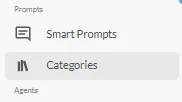
Navigate to the Categories Page
Go to AI Settings
Select Categories from the menu
Create a Category
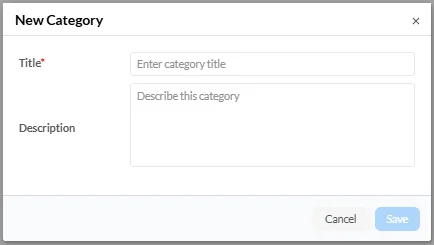
Click + Add Category in the top right of the page
Enter a category name
Click Save
The new category is immediately available for assignment to prompts.

Edit a Category
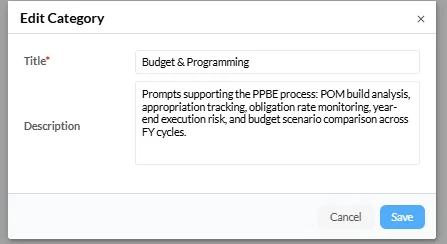
Locate the category in the list
Click the pencil icon next to the category name
Update the name
Click Save
Editing a category name updates it across all prompts currently assigned to that category.
Delete a Category
Locate the category in the list
Click the three dots (⋮) or delete icon next to the category
Confirm the deletion in the confirmation modal
Deleting a category removes it from all prompts currently assigned to it. Prompts are not deleted — they become uncategorized.

Category Filtering in the Prompt Library
Once categories are assigned to prompts, the prompt library displays a category filter. Users can filter the prompt list to show only prompts in a specific category.